
MALWARE & BACKDOORS
Google Says Your WordPress Website Is Dangerous: How to Fix Security Warnings
Is Google or Chrome warning visitors that your WordPress website is dangerous? Discover what these alerts mean, how to investigate malware or deceptive content, and how to request Google's security review after cleanup.
Google Says Your WordPress Website Is Dangerous: How to Fix Security Warnings
A customer tells you they cannot open your WordPress website because Chrome displays a red security warning. Maybe Google Search labels the website as dangerous, or visitors see messages such as “Deceptive site ahead” or “The site ahead contains malware.”
This can be alarming for any business owner. Visitors may leave without contacting you, customers may be reluctant to enter their details, and an online store may lose orders while the warning remains.
A Google security warning is a reason to investigate the website—not proof that every WordPress file has been infected. The warning may involve malicious software, hacked pages, phishing content, unsafe downloads or suspicious third-party resources.
To remove the warning, first identify what Google has flagged. Address the cause throughout the affected website, verify the fix, and then use the appropriate Google review process. Simply asking Google to remove the warning before resolving the problem can lead to another unsuccessful review.
Why Does Google Say My WordPress Website Is Dangerous?
Google Safe Browsing helps protect people from websites that may expose them to harmful content. Google Search Console also provides a Security Issues report for verified site owners.
According to Google's documentation, security issues may include:
- Hacked content: Pages, links or files added or changed without the owner's permission.
- Malware or unwanted software: Harmful downloads, scripts or software associated with the website.
- Social engineering or phishing: Deceptive pages that try to obtain passwords, financial details or other sensitive information.
- Dangerous external resources: Embedded content, advertisements or links that lead visitors to unsafe destinations.
The visible message may vary depending on the browser, the affected URL and the type of issue.
Google's findings should guide your investigation, but they do not always identify every compromised page or explain exactly how the incident happened.
Common warnings and what they may mean
| Warning or symptom | Possible concern |
|---|---|
| “Deceptive site ahead” | Possible phishing or social-engineering content |
| “The site ahead contains malware” | Possible malware or harmful software |
| Dangerous or unsafe download warning | A downloadable file may be malicious, unwanted or otherwise flagged |
| Search result warning beside your website | Google has identified a security concern associated with the result |
| Security Issues report lists hacked content | Unauthorised pages, code or content may have been added |
| Only some visitors see the warning | Different URLs, browser contexts, caches or selective malicious behaviour may be involved |
These examples are indicators, not diagnoses. A legitimate WordPress website can be compromised and used to display harmful content without the owner knowing.
Is a Google Security Warning the Same as a Google Penalty?
No. It's important to distinguish security issues from manual actions and ordinary search performance changes.
Google Search Console has separate reports for security problems and manual actions.
- Security Issues covers detected hacked or potentially harmful behaviour affecting visitors.
- Manual Actions concerns actions Google applies when a site violates certain Search spam policies, which may affect visibility in search results.
- Indexing and ranking changes can occur for many reasons unrelated to either report.
A website may experience more than one type of problem, but fixing a security warning does not automatically restore traffic, search rankings or every previously indexed page.
Always identify the exact report and issue rather than treating every Google warning as a ranking penalty.
How to Check Why Google Flagged Your WordPress Website
1. Open Google Search Console
Sign in to Google Search Console and select the property covering the affected website.
If your website has never been verified, follow Google's property verification process. You may need help from your web administrator, domain provider or hosting provider.
Do not give an unknown third party your account password or unrestricted control over the property.
2. Open the Security Issues report
Find Security Issues under Search Console's security-related reporting.
Read the issue category, detection details and any example affected URLs. Google notes that example URLs are samples, not necessarily a complete list of everything affected.
If no example URLs are provided, that does not prove the report is incorrect.
Record the exact warning type before deciding what to fix.
3. Check for suspicious property owners and access
Review who has ownership or access to your Search Console property.
Google specifically advises checking that no unexpected or suspicious verified owners have been added when investigating deceptive-site warnings.
Also check relevant WordPress administrator accounts and hosting access, but coordinate access changes with any active incident investigation.
4. Investigate safely
Do not repeatedly browse pages that may deliver malware or phishing content on your everyday work computer.
A security professional may use controlled diagnostic tools, logs, file comparisons and Search Console's URL Inspection information to investigate.
Malicious redirects sometimes appear only for particular devices, referrers or visitors. This can explain why a customer sees the problem while you see a normal website.
If your website redirects unexpectedly, see our guide: WordPress Website Redirecting to Spam or Malicious Sites?.
What Causes Google Security Warnings on WordPress?
Compromised plugins, themes or website files
Attackers may exploit a vulnerable WordPress component or compromised credentials to inject code, replace files, or create unwanted pages.
A malicious script might load content from another domain, redirect visitors or attempt to serve harmful downloads.
Phishing pages added without your knowledge
A compromised WordPress installation can host a fake login screen, payment page or imitation of a trusted organisation.
The owner's normal homepage may remain unchanged, making the attack difficult to spot.
Malicious redirects
An attacker may cause visitors arriving from a search result, using mobile devices or meeting another condition to land on a scam or malware destination.
A site owner who opens the homepage directly may not see the redirect.
Unsafe advertisements or embedded content
Google's social-engineering guidance notes that deceptive third-party advertising and embedded resources can cause security problems on an otherwise legitimate page.
Review advertising networks, third-party scripts and embedded widgets if the report points to deceptive content.
Harmful downloads or links
Files offered for download—or links directing users to harmful downloads—may trigger specific warnings.
The offending content might have been placed by an attacker, but not every flagged download proves the site was hacked.
Compromised hosting or other installations
If multiple sites share an account or the hosting environment is compromised, a WordPress-only cleanup may not address the full problem.
This may require the hosting provider or a specialist infrastructure-response team.
How to Remove a Google Security Warning From WordPress
The safest sequence is diagnose → contain → clean → secure → verify → request review.
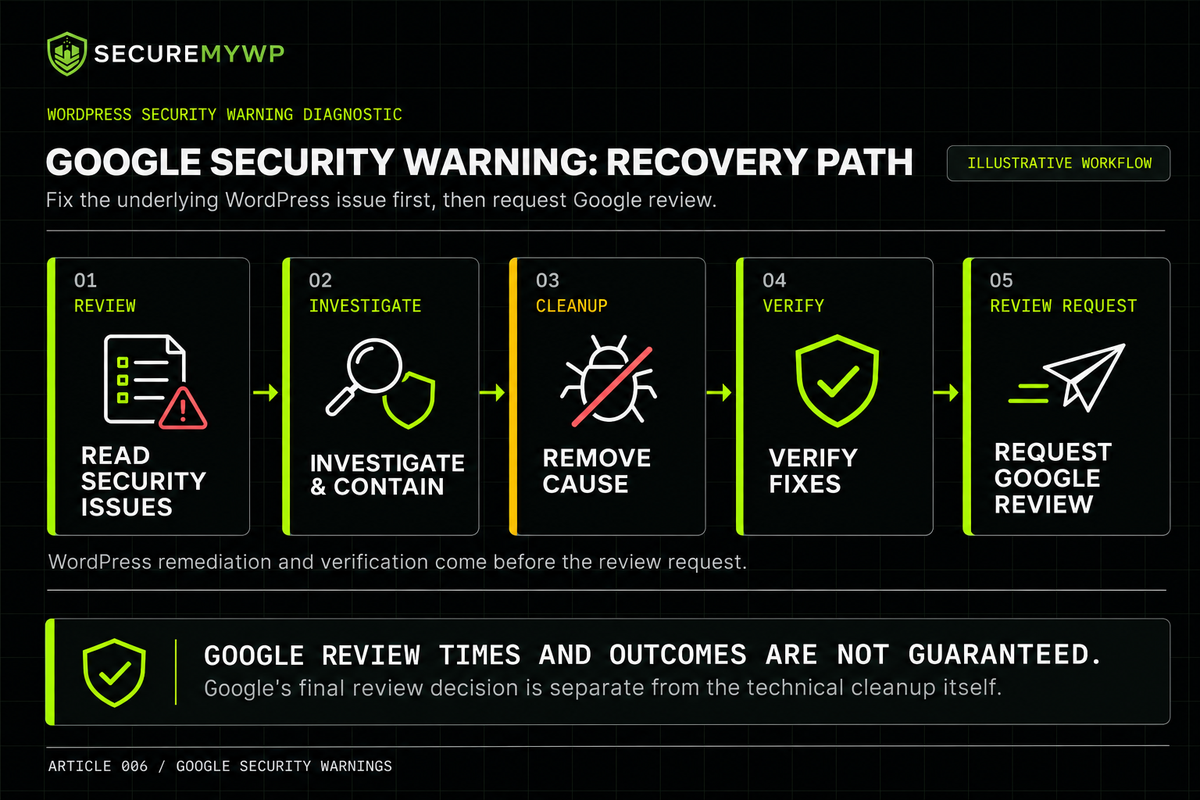
Step 1: Preserve the report and evidence
Save the issue type, affected URLs and discovery time. Record screenshots of warnings where useful, without asking customers to bypass security warnings.
If a compromise is suspected, preserve appropriate backups, logs and a secure snapshot before making destructive changes, where technically possible.
Step 2: Protect visitors while the problem is active
If the site is serving phishing content, malware or dangerous redirects, consult your hosting provider about restricting affected functionality or temporarily limiting access.
Avoid replacing a dangerous page with a cosmetic warning while leaving the malicious content available at other URLs.
Step 3: Investigate and remove the cause
The required work depends on the findings. It may involve reviewing:
- WordPress core files, plugins, themes and uploads.
- Database records, unexpected URLs and inserted scripts.
- Unauthorised administrator accounts and access routes.
- Malicious redirects, deceptive pages and unsafe downloads.
- Third-party scripts, advertisements and external resources.
- Scheduled tasks, backdoors or affected hosting components.
Do not assume deleting the URL shown in Search Console is sufficient. That URL is a clue; the underlying compromise may affect other parts of the website.
For broader incident-response guidance, read My WordPress Website Has Been Hacked — What Should I Do?.
Step 4: Close the entry point and secure access
If the website was hacked, remediation must address how the attacker gained or retained access where the evidence permits.
Update or replace vulnerable software, remove unauthorised access, rotate relevant credentials from a trusted device, enable multifactor authentication where supported, and review the wider hosting environment when indicated.
Restoring a backup containing the same vulnerability or malicious changes can allow the problem to reappear.
Step 5: Verify the cleanup
Check the original affected URLs, related pages and essential website functions. Look for remaining phishing pages, malicious scripts, redirects, downloads and suspicious access.
Where possible, compare the website against verified clean components and inspect relevant logs.
Revisit Search Console to ensure you understand every listed security issue. Google's sample URLs may not include everything that must be fixed.
A clean malware scan can be useful evidence, but it does not guarantee that all threats or hosting-level persistence mechanisms are gone.
If suspicious behaviour returns, our guide to repeat infections can help you understand why a cleanup may fail: WordPress Malware Keeps Coming Back? (Link once Article 005 is live.)
Step 6: Request Google's security review
When all listed security issues have been fixed across the affected website, open Search Console's Security Issues report and select Request Review, when that option is available.
Explain:
- What Google reported and what you discovered.
- What content, code or configuration you removed or corrected.
- What steps you took to prevent a recurrence.
- How you checked that the issue was resolved.
Use factual language. Do not claim that every possible vulnerability was eliminated or that Google already approved the fix.
A review request is not a substitute for cleaning the website.
Example: What to Write in a Google Security Review Request
The exact details should reflect your incident. Here's an illustrative format, not a statement about a real SecureMyWP client:
We investigated the security issue reported for the affected WordPress URLs. We identified and removed the unauthorised content and reviewed related files, database records and user access. We updated or replaced the relevant vulnerable components and checked the affected pages for the previously reported behaviour. We request a review of the corrected website.
Only include actions actually performed. If you do not know the original entry point, say so rather than guessing.
How Long Does Google Take to Remove a Dangerous Website Warning?
Google does not guarantee an immediate review or warning removal.
Its Search Console documentation explains that security reviews can take from several days to several weeks, depending on the issue and review process.
You should receive confirmation that a submitted review is in progress and an update when Google reaches a decision.
Do not repeatedly resubmit an active request. Google advises waiting for a decision before requesting another review.
If the review fails, use the reported findings to check whether malicious content remains, the previous cleanup was incomplete, or other affected URLs were missed.
No WordPress malware removal provider can guarantee that Google will lift a warning within a fixed period.
What If Google Says the Site Is Dangerous but Search Console Shows No Issues?
Do not automatically assume the browser warning is fabricated.
First confirm that you are viewing the correct Search Console property and exact domain or URL. A warning may concern a different hostname, subdomain, redirect destination or browsing context.
Check the warning's precise wording, affected URL and any Google Safe Browsing status information.
If the site appears to have been classified incorrectly, Google provides reporting and review channels for possible mistakes. Follow the relevant official guidance for the warning type; Search Console's Security Issues workflow may not apply identically to every browser or download warning.
Also check whether third-party content, an external destination or another application within your hosting account is involved.
Do not tell visitors to bypass Google's warning as a workaround.
Can You Fix the Website Yourself?
Technically experienced WordPress owners may be able to investigate and repair some incidents themselves.
But malware removal can involve file integrity, database inspection, access controls, redirects, server logs and potentially compromised hosting components.
Unplanned deletion, broad database changes or restoring an infected backup can make recovery harder.
If you are uncertain how to safely assess the affected systems, involving your hosting provider or a qualified incident-response specialist is reasonable.
How SecureMyWP Can Help With WordPress Security Warnings
SecureMyWP offers human-led WordPress Incident Recovery for US$199 once-off for one qualifying WordPress installation, subject to human scope review and written confirmation before payment. No mandatory subscription is required.
Depending on the accepted scope and technical circumstances, the service ordinarily includes relevant WordPress file and database investigation, identified malware and backdoor remediation, review of suspicious accounts, practical hardening, functional checks, reasonable verification and a written Incident Report.
Relevant Google or blocklist assistance may be included where applicable. However, Google's review and classification processes are independent; SecureMyWP does not guarantee removal of a Google warning, immediate reindexing or restoration of search rankings.
Several infected installations, hosting/root-level compromise, complex data recovery and extensive custom repair are not automatically included at the standard price. Those circumstances may require a separately accepted quote or an infrastructure specialist.
Qualifying Standard Recovery engagements include a conditional 30-day re-clean warranty for the same covered installation under the published warranty conditions. This is not continuous monitoring or unlimited future cleanup.
For more on comparing recovery services and scope, read WordPress Malware Removal: What Does It Cost?.
Google warning visitors away from your WordPress website? Get WordPress Recovery Help. Describe the warning and affected URL in your enquiry, but do not submit passwords, private keys or recovery codes through the public form.
Frequently Asked Questions
Why does Google say my website is dangerous when it looks normal to me?
Harmful content can be hidden on unexpected URLs, shown only to certain visitors, or loaded through embedded third-party resources. Check the Security Issues report and investigate the flagged behaviour.
Does a Google warning mean my WordPress site was hacked?
Not always. Hacked content is one possible reason. Harmful downloads, deceptive embedded content and other security issues can also cause warnings.
Can I remove the warning without cleaning WordPress?
If a real security issue remains, requesting review alone is not an adequate fix. Correct the underlying issue before seeking reconsideration.
Does Google automatically remove warnings after malware cleanup?
Google may reassess the site, but the documented route for listed security issues is to fix them and request a review through Search Console. There is no guaranteed timetable.
Can a WordPress security plugin remove Google's warning?
A plugin may help identify or remediate website threats, depending on its capabilities. It does not control Google's review or Safe Browsing decisions.
Is a Search Console security issue the same as a manual action?
No. These reports address different problems. Review both when necessary, but follow the process appropriate to the issue actually reported.
Will removing the Google warning restore my traffic or rankings?
Not necessarily. Warning removal and search visibility are separate outcomes. Rankings and traffic depend on many factors.
Does SecureMyWP's $199 service include Google warning assistance?
Relevant assistance may be included for a qualifying WordPress-level recovery under the confirmed scope. Google makes its own review decisions, and wider hosting or multi-site problems may require additional assessment.
Final Thoughts
A dangerous-site warning can interrupt customer trust and business activity, but the right response starts with evidence rather than assumptions.
Identify Google's warning, investigate affected URLs and related components, remove the harmful content, secure the website, verify the result and request an appropriate review.
The goal is not merely to make the warning disappear. It is to resolve the underlying security issue so visitors can return to a safer website.