
MALWARE & BACKDOORS
WordPress Malware Keeps Coming Back? Why Your Website Gets Reinfected After Cleanup
Has malware returned after you cleaned your WordPress website? Discover how hidden backdoors, compromised credentials, vulnerable plugins and hosting-level threats can cause repeat infections—and how to investigate safely.
WordPress Malware Keeps Coming Back? Why Your Website Gets Reinfected After Cleanup
You removed suspicious files, ran a malware scan, or restored your WordPress website from a backup. Everything seemed normal. Then the spam pages, malicious redirects, strange administrator accounts, or hosting security alerts returned.
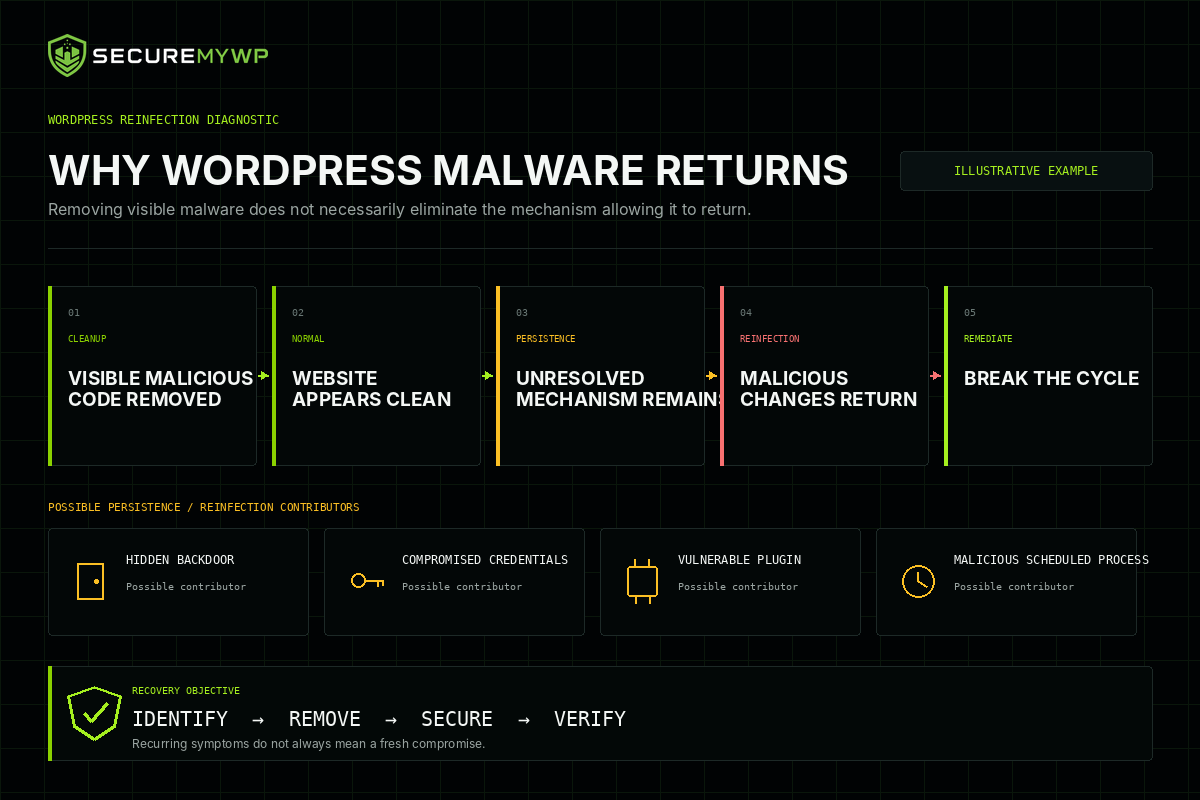
If WordPress malware keeps coming back, the original infection may not have been fully removed—or the weakness that allowed attackers in may still exist. In some cases, an attacker has left a hidden way back into the website. In others, a compromised account, plugin, scheduled task, or even a separate hosting application can reintroduce malicious changes.
The first step is to confirm whether the problem really is a new infection. Then investigate how it returned rather than repeating the same cleanup blindly.
Is Your WordPress Website Actually Reinfected?
A warning or suspicious page that reappears does not always prove a fresh compromise. Several situations can look similar:
- Incomplete cleanup: A malicious file, database entry, or backdoor was never removed. The symptom returns even though the attacker has not necessarily broken in again.
- Actual reinfection: An attacker exploits an unresolved vulnerability or uses retained credentials to regain access after cleanup.
- Cached malicious content: A browser, caching plugin, proxy, or CDN may continue showing an older compromised version of a page. Verify the current origin content before assuming the server was infected again.
- Old search-engine results or warnings: Search listings and security warnings can take time to reflect a completed cleanup. Check Google Search Console rather than relying on a search result alone.
- A separate technical problem: A legitimate redirect rule, broken plugin, or configuration error may resemble a malware symptom.
Record the affected URL, the exact behaviour, when it appeared, and whether different browsers or devices show the same result. If possible, ask your host or security professional to compare current files and database records with known-clean copies.
A clean-looking homepage or a single clean scan is not enough to prove that the incident has been resolved.
Why Does WordPress Malware Keep Coming Back?
1. A hidden backdoor survived the cleanup
A backdoor is a method an attacker uses to regain unauthorised access. It can be disguised as an ordinary file or introduced through a compromised plugin, theme, or another component.
Removing a visible spam page does not remove a backdoor stored elsewhere. Some backdoors can also rebuild malicious files after they are deleted. The correct response is to identify and remove the persistence mechanism—not just the file displaying the symptom.
2. Malicious code exists in more than one place
WordPress infections may involve files and database content simultaneously. Injected scripts, altered settings, malicious plugin code, and unexpected application components can interact.
In a September 2026 investigation, Sucuri documented a particularly persistent infection involving interconnected loaders, WordPress drop-ins, database content, and shared memory. Removing one element allowed another to rebuild it. This is a documented case study, not evidence that every WordPress infection works that way.
The lesson is straightforward: a cleanup must consider the full affected environment and the relationships between malicious components.
3. Scheduled tasks or automated processes restore malware
Attackers may abuse scheduled tasks or other automation to recreate malicious content. These tasks can exist in WordPress or at the hosting/server level.
If the same file reappears at intervals, its modification times and the relevant logs may help investigators determine what is writing it. Do not delete unfamiliar scheduled tasks indiscriminately; some are essential to your website or hosting environment.
4. Compromised passwords or administrator accounts remain active
An attacker who still controls a WordPress administrator account, hosting login, SFTP credential, or other privileged access route may simply return.
Credential theft can also originate on a compromised administrator computer. Investigate potentially exposed devices and rotate relevant credentials from a trusted environment. Remove unauthorised accounts, review access privileges, enable multifactor authentication where supported, and revoke unneeded access or sessions.
5. The original software vulnerability was not fixed
A compromised plugin, outdated theme, insecure custom code, or other unpatched component can leave the original entry point available even after malware has been removed.
Identify affected software, install an appropriate secure update or replacement, and remove unnecessary or unsupported components. Make backups and test compatibility before significant changes.
6. Another installation or hosting component is compromised
Sometimes the persistence mechanism is outside WordPress entirely.
In May 2026, Wordfence described an investigation in which malicious WordPress redirects repeatedly returned after cleanup. The source was a webmail-related backdoor in the CyberPanel hosting environment, outside the WordPress installation. The attacker could rewrite a WordPress configuration file even after WordPress-level checks looked clean.
This does not mean every repeat infection is a server-root compromise. It means that persistent symptoms sometimes require the hosting provider or a qualified infrastructure specialist to investigate outside the WordPress directory.
Why Does My WordPress Malware Scanner Say the Site Is Clean?
Security scanners are useful. They can detect known signatures, suspicious file changes, and some malicious database or website behaviours. Some tools also offer automated remediation.
But scan coverage is not the same as verified recovery.
A plugin-based scanner may not have permission to inspect unrelated hosting applications, other customer installations, server-wide scheduled tasks, or files outside its configured scan area. A remote scanner sees what a visiting browser can access, which may differ from what is stored on the server. Some malicious behaviour activates only for selected visitors.
A scan can therefore report no findings while a problem remains outside its visibility or detection capabilities. This does not prove the scanner is defective; different tools inspect different layers.
Ask what was actually checked: files, database records, suspicious accounts, server configuration, scheduled tasks, backups, and other affected installations. A credible recovery assessment should explain findings and limitations rather than promise that one scanner catches everything.
What Should You Do If Malware Returns After Cleanup?
Step 1: Protect visitors and record the symptoms
If your site is actively serving malicious downloads, phishing content, or dangerous redirects, work with your host to restrict access or otherwise contain the risk. Preserve screenshots, affected URLs, approximate timestamps, and customer reports without asking people to visit malicious destinations.
Step 2: Preserve a secure copy and relevant logs
Where feasible, retain a backup or hosting snapshot of the affected files and database before making further changes. Preserve relevant access and error logs. A snapshot may contain malware, so store it securely and do not automatically use it as a clean restore point.
Step 3: Involve your hosting provider
Explain that malware returned after a previous cleanup. Ask whether they can examine file modification history, hosting account access, scheduled tasks, neighbouring installations, and server-level activity within their responsibilities.
If multiple sites are affected or an attacker may control the server, request infrastructure-level investigation rather than treating the issue as WordPress-only.
Step 4: Review access and credentials
From a trusted device, secure administrator, hosting, SSH/SFTP, database, and relevant connected-service accounts as appropriate. Review unfamiliar users and integrations. Coordinate credential rotation with incident responders if active compromise is suspected.
Step 5: Investigate the full infection and persistence mechanism
A qualified investigation should consider affected WordPress core files, plugins, themes, uploads, configuration, database content, scheduled processes, and relevant hosting components.
Compare with trusted copies where feasible. Identify what recreates the malware and whether the attacker still has a working route back in.
Step 6: Remove malicious changes and close the entry point
Remediation may involve replacing compromised software with verified clean copies, removing unauthorised accounts or backdoors, repairing database content, updating or replacing vulnerable extensions, and securing the hosting environment.
Do not randomly delete PHP files, database records, or system jobs. Those changes can break the website and destroy useful evidence.
Step 7: Restore only from trustworthy backups
A backup can help, but an infected backup may restore the problem. Even a clean backup can reintroduce an outdated vulnerable plugin or unsafe configuration. Confirm the backup's integrity and address the entry point before reopening the site.
For WooCommerce and other transactional websites, plan carefully to avoid losing newer orders or customer records.
Step 8: Verify and monitor the result
Retest the original affected pages and circumstances, inspect for suspicious changes, confirm essential site functions, review available logs, and check Google Search Console's Security Issues report.
A successful check reduces uncertainty but cannot guarantee that every threat has been eliminated. Maintain backups, updates, access controls, and an appropriate monitoring process.
Can I Stop Reinfection by Reinstalling WordPress?
Reinstalling WordPress core files can replace compromised core components, but it does not automatically clean plugin files, themes, database content, uploads, credentials, or the hosting environment.
Likewise, a site restore can bring back vulnerable software if the underlying weakness remains. Reinstallation and restoration may be parts of a recovery plan, not complete substitutes for investigating the cause.
When Should You Seek Professional Help?
Professional assistance is particularly appropriate when malware reappears soon after cleanup, the same file keeps changing, visitors report redirects you cannot reproduce, unexpected administrator accounts return, multiple installations are affected, or the host suspects a broader compromise.
For a general incident-response overview, read My WordPress Website Has Been Hacked — What Should I Do?. If the recurring symptom is an unexpected destination, see WordPress Website Redirecting to Spam or Malicious Sites?.
How SecureMyWP Can Help
SecureMyWP offers human-led WordPress Incident Recovery for one qualifying WordPress installation at US$199 once-off, subject to human review and written scope confirmation before payment. There is no mandatory subscription.
Depending on the accepted scope and technical circumstances, Standard Recovery ordinarily covers relevant WordPress file and database investigation, identification and remediation of malicious changes and backdoors, review of suspicious accounts and software integrity, practical hardening, reasonable verification, and a written Incident Report. A likely entry point is assessed where the evidence permits.
Multiple infected installations, hosting or root-level compromise, extensive custom-code repairs, and major data recovery are not automatically covered by the standard price. Such cases may require specialist assistance or a separate quotation accepted in writing. Standard Recovery does not include a guaranteed response-time SLA or ongoing continuous monitoring.
What About SecureMyWP's 30-Day Re-Clean Warranty?
Qualifying Standard Recovery engagements include a conditional 30-day re-clean warranty. If the same covered installation experiences a qualifying reinfection within 30 consecutive calendar days from documented completion, SecureMyWP provides the covered re-clean labour without an additional charge under its published conditions.
This is not unlimited maintenance or a guarantee of permanent protection. Other installations, infrastructure-level work, and external costs are not automatically included. Report a suspected qualifying reinfection within the warranty period and review the Warranty Conditions.
To understand how providers price different recovery scopes, see WordPress Malware Removal: What Does It Cost?.
WordPress malware returned after cleanup? Get WordPress Recovery Help. Describe the symptoms in the enquiry, but do not send passwords, recovery codes, private keys, or other credentials through the public form.
Frequently Asked Questions
Why does WordPress keep getting hacked after I clean it?
A backdoor, compromised credential, unresolved vulnerability, malicious scheduled process, or separate compromised hosting component may remain. In some cases, the previous cleanup simply missed part of the original infection.
Can malware return without a new hack?
Yes. An existing malicious component can recreate files, and old cached content can sometimes make a solved problem appear unresolved. Investigation is needed to distinguish those situations.
Does a clean WordPress scan mean my website is safe?
No scan offers absolute certainty. A clean result means the tool did not identify a threat within its checks and visibility; it does not establish that unrelated hosting components or other layers are uncompromised.
Can a backup cause reinfection?
Restoring an infected backup or reintroducing the original vulnerable software can bring back the problem. Use verified backups and address the underlying weakness.
Will changing passwords stop malware from returning?
Credential changes can stop access through stolen passwords, but they do not remove malicious files, server-level backdoors, or vulnerable components already present.
Is repeat malware cleanup covered by SecureMyWP's $199 service?
One qualifying WordPress installation may fall within Standard Incident Recovery after human scope confirmation. Hosting-level or multi-site incidents may require a separate quote. A prior SecureMyWP customer may also have a qualifying claim under the conditional 30-day re-clean warranty.
Final Thoughts
When WordPress malware keeps returning, repeating the same scan or deleting the same suspicious file is rarely a sufficient investigation strategy. First confirm whether the site is truly reinfected. Then identify the source of persistence, remove unauthorised changes, secure affected access, fix the underlying weakness, and verify the result.
The objective is not only to remove visible malware. It is to remove the attacker's ability to recreate it—where the evidence and agreed recovery scope allow.